Concepts: A step-by-step guide to installing the Java Development Kit (JDK) and an Integrated Development Environment (IDE) like IntelliJ IDEA or Eclipse. Explain how to write, compile, and run your first program.
Run your Java code on online at Online-Java-Compiler. No installation required.
Install Java
However, if you want to run Java on your own computer, follow the instructions below.
type the following in Command Prompt (cmd.exe):
C:\Users\Your Name>java -version
If Java is installed, you will see something like this
java version “22.0.0” 2024-08-21 LTS
If you do not have Java installed on your computer, you can download it at oracle.com.
Start Java
In Java, every application begins with a class name, and that class must match the filename.
Let’s create our first Java file, called Main.java, which can be done in any text editor (like Notepad).
Code Example:
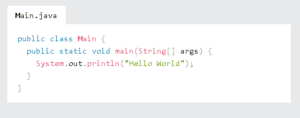
Main.java
public class Main {
public static void main(String[] args) {
System.out.println(“Hello World”);
}
}
Save the code in Notepad as “Main.java”. Open Command Prompt (cmd.exe), navigate to the directory where you saved your file, and type “javac Main.java”:
C:\Users\Your Name>javac Main.java
This will compile your code. If there are no errors in the code, the command prompt will take you to the next line. Now, type “java Main” to run the file:
C:\Users\Your Name>java Main
Practical exercise:
Follow the instructions to install the software and run the “Hello, World!” program yourself.
Quiz: Identify the purpose of the JDK, JRE, and IDE.
